
Payroll Pre-Audit Suspense Report
What is the Pre-Audit Suspense Report?
The pre-audit suspense report in PeopleSoft HR is a useful tool that allows users to view a list of positions on track to have paychecks post against the UHD payroll suspense cost center
- The payroll suspense cost center is the default UHD cost center which houses paychecks for UHD positions that were not assigned to a cost center on the Department Budget Table (DBT) in the current fiscal year
- Filled positions, or positions expected to be filled in the current fiscal year, must be tied to a department’s cost center in the current fiscal year on the DBT
- If not, the position will be listed on the pre-audit suspense report, and each finalized paycheck for each employee hired into the position will post to the UHD payroll suspense cost center as opposed to the department’s cost center, resulting in understated and incorrect department payroll expenditures and encumbrances on financial reports
- The suspense cost center houses earnings, deductions and taxes from each paycheck
- The two main reasons why positions appear in the pre-audit suspense report are:
- An ePRF for the current fiscal year has not been submitted by the department to assign a cost center to a position for payroll to post against
- The cost center listed on the earnings tab of the current fiscal year DBT for a position has expired and/or is expected to expire (common with grant cost centers)
- Cost center funding for full-time base budgeted positions automatically load to the DBT in PeopleSoft HR from Hyperion in July/August for the fiscal year starting 9/1
- Cost center funding for part-time (temporary/lump sum) positions do not automatically load to the DBT in PeopleSoft HR from Hyperion unless they are base budgeted
How to Run a Pre-Audit Suspense Report
Navigation path:
PeopleSoft HR > Main Menu > UHS HRMS Budget > Reports > Dept Budget Suspense Report
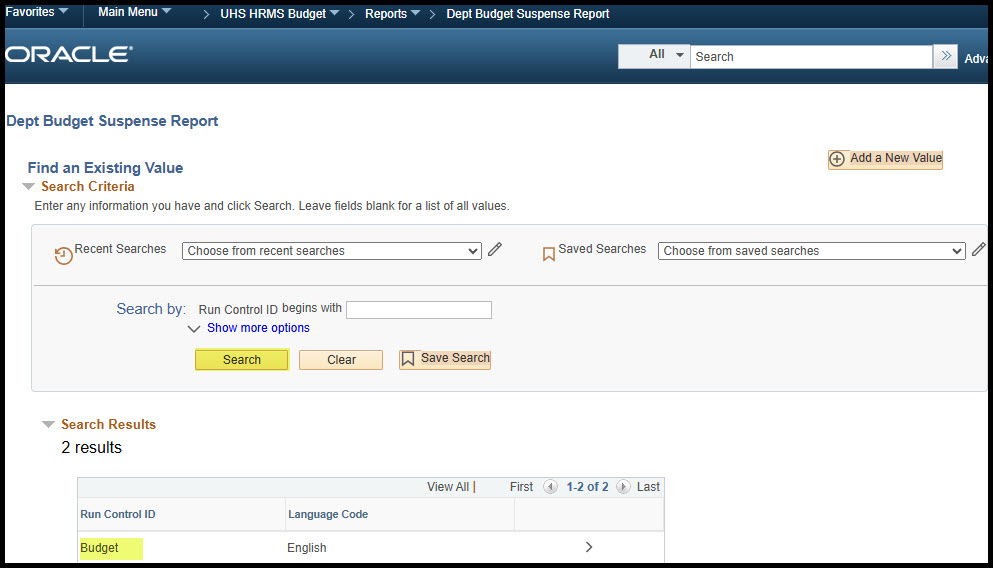
- On the “Find an Existing Value” tab, click “Search” to select a Run Control ID
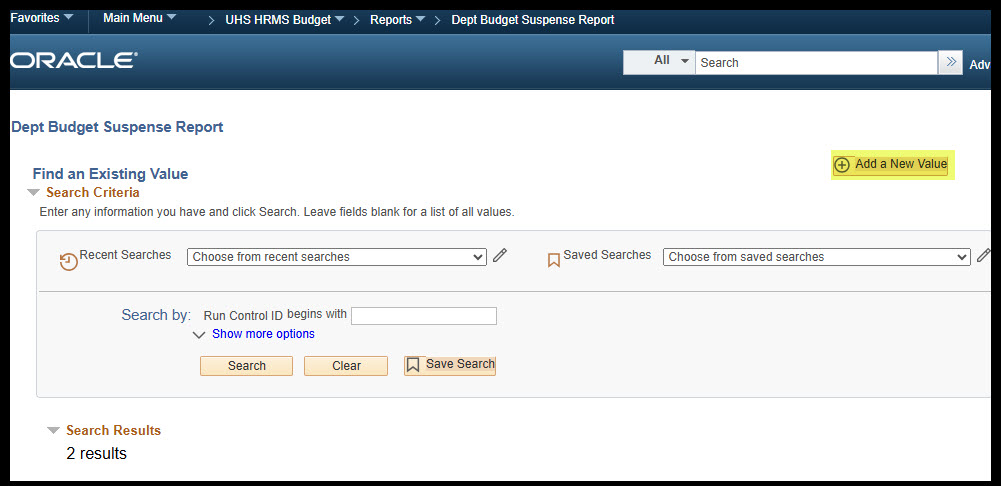
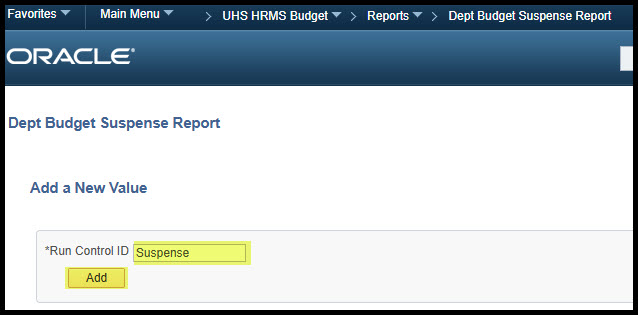
- To add a new run control, select “Add a New Value” on the top-right. Enter a name for the run control then click “Add”
Running a Pre-Audit Suspense Report
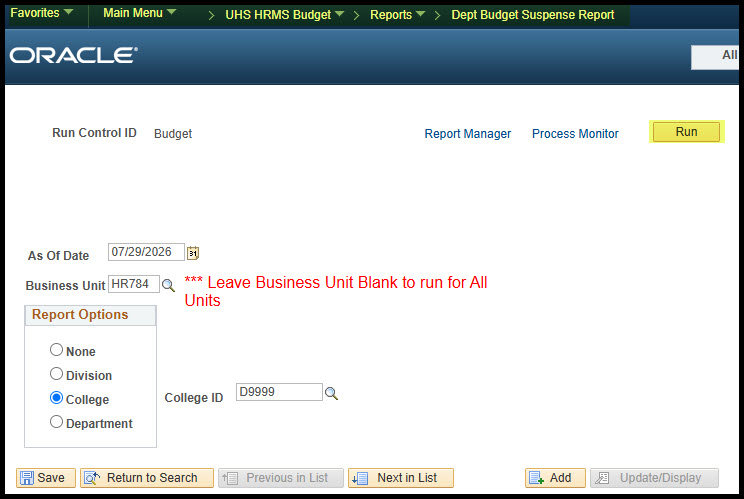
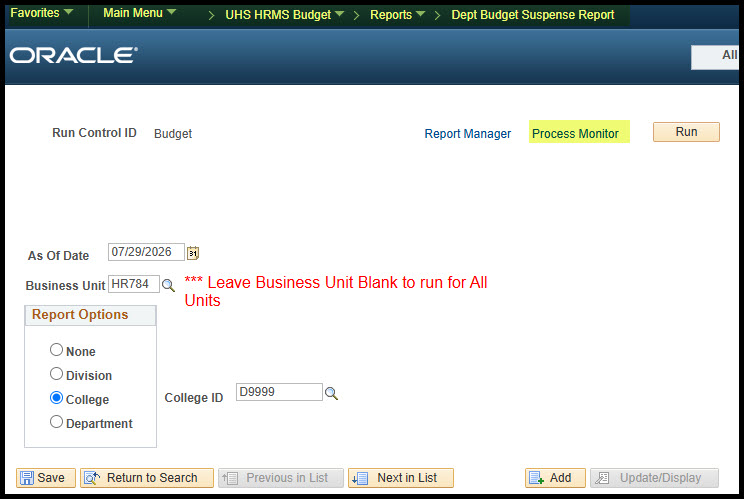
- The date should be a month ahead
- The business unit should always be “HR784”
- The Pre-Audit Suspense Report can be run by division, college or department
- Once all sections are chosen, click “Run” on the top-right corner
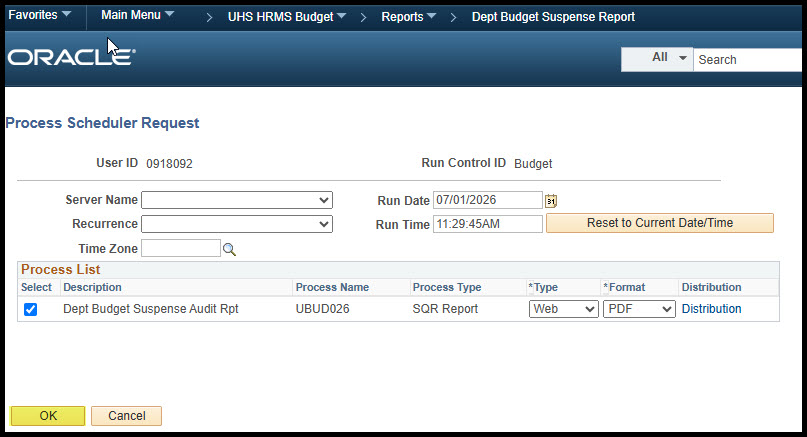
- A second page will appear. Click “OK” on the bottom-left corner
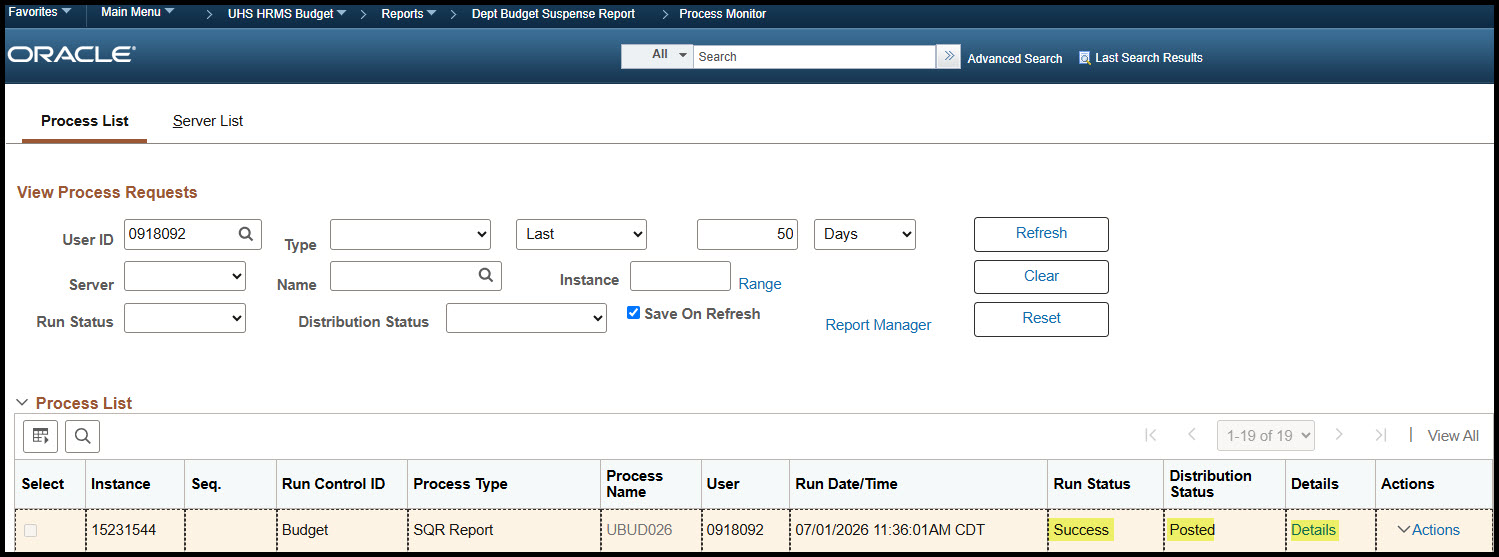
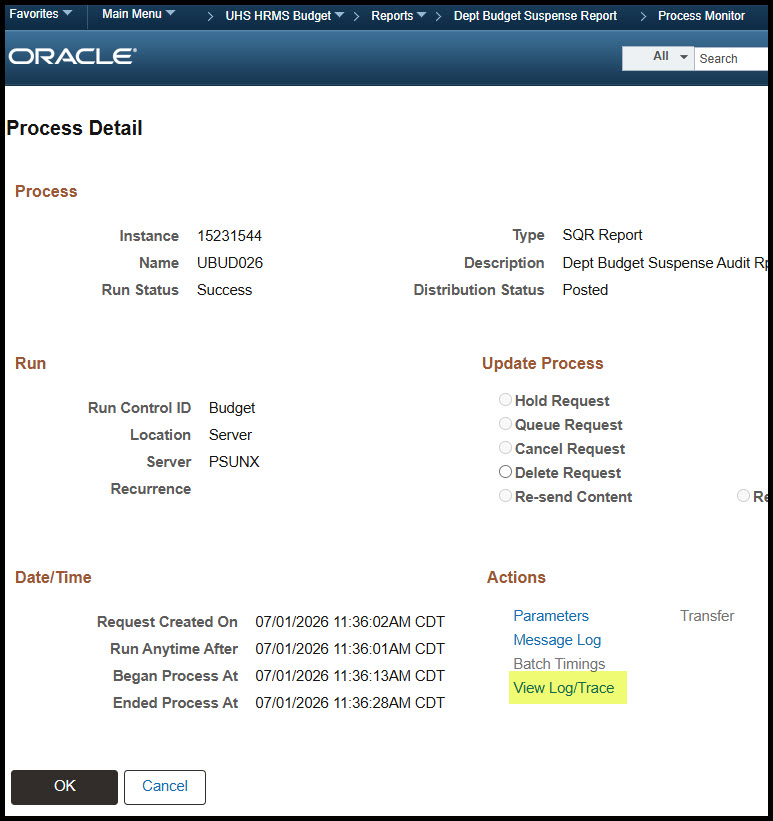
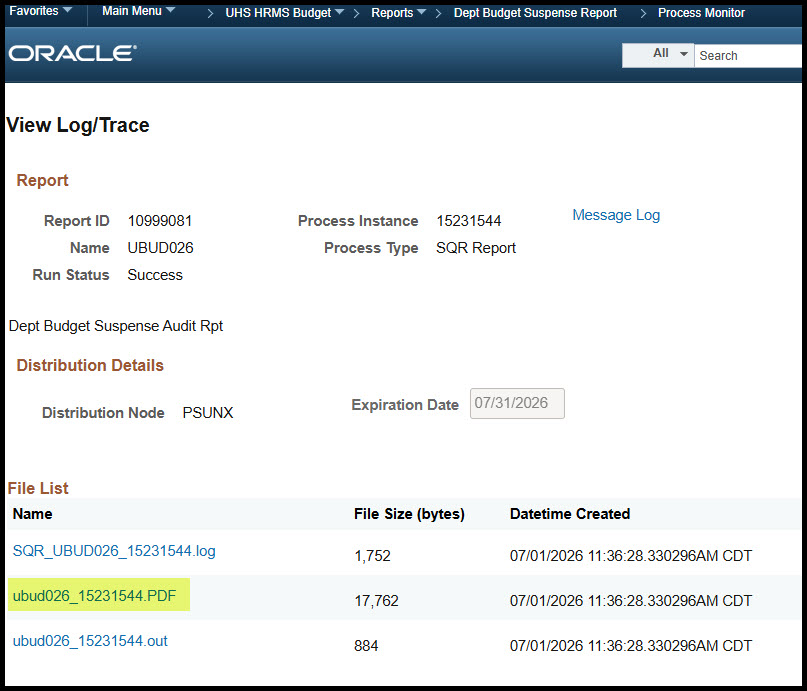
- Then click “Process Monitor” on the top right-corner and wait until the run status shows “Success” and the distribution status shows “Posted”
Information Displayed on the Pre-Audit Suspense Report
- Position numbers and titles are displayed in order by division, college, then department
- The effective date represents the date the position no longer has a funding cost center listed on the Department Budget Table.
- The speed type for the suspense cost center is “00784-12419”
- The distribution column shows the percentage of salary which will be posted to suspense if the necessary action is not taken
- The headcount column shows the number of employees in each position
- The three common messages displayed on the report include:
- No Funding/Partial Funding: This error appears when the DBT line for the current fiscal year does not exist
- Funded to Suspense: This error appears when the DBT line for the current fiscal year exists, but the suspense cost center is listed
- Unfunded Fringes: This error appears when an ePRF is executed on the day of the bi-weekly/monthly payroll final. It is likely that fringe benefits will hit the payroll suspense cost center, which will require the Budget Office to clear to the appropriate department cost center via payroll reallocation
Key Takeaways
- It is advised to run and review the pre-audit suspense report once a week
- Aim to have each ePRF fully approved by the bi-weekly and/or monthly final
- Monitor positions funded from grants
- Avoid adding an end date to an ePRF