
1074 Department Verification Report
How to Run the Department Verification Report (UGL01074)
PEOPLESOFT FINANCE NAVIGATION:
Main Menu > Custom Reports > GL > Dept Verification Rpt (1074)
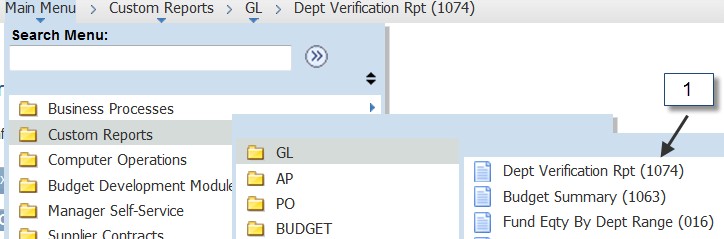
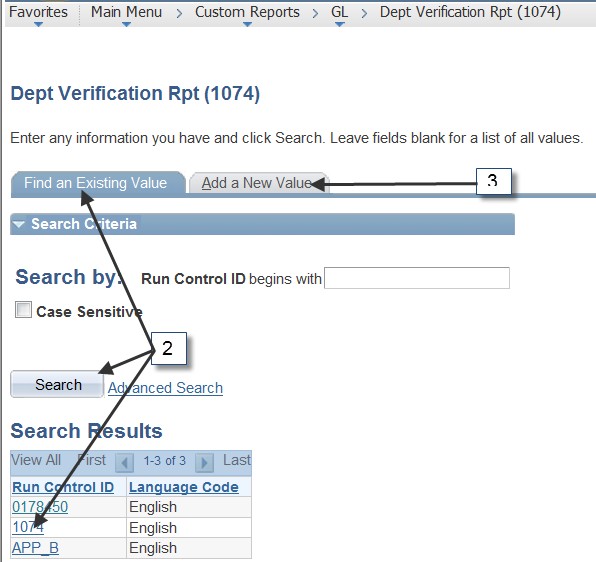
Click Search on the Find an Existing Value tab to select a Run Control ID to open the report parameters page.
To add a new run control: Select the Add a New Value tab. Enter a name for the run control, and then click the Add button.
The Report Parameter page is displayed:
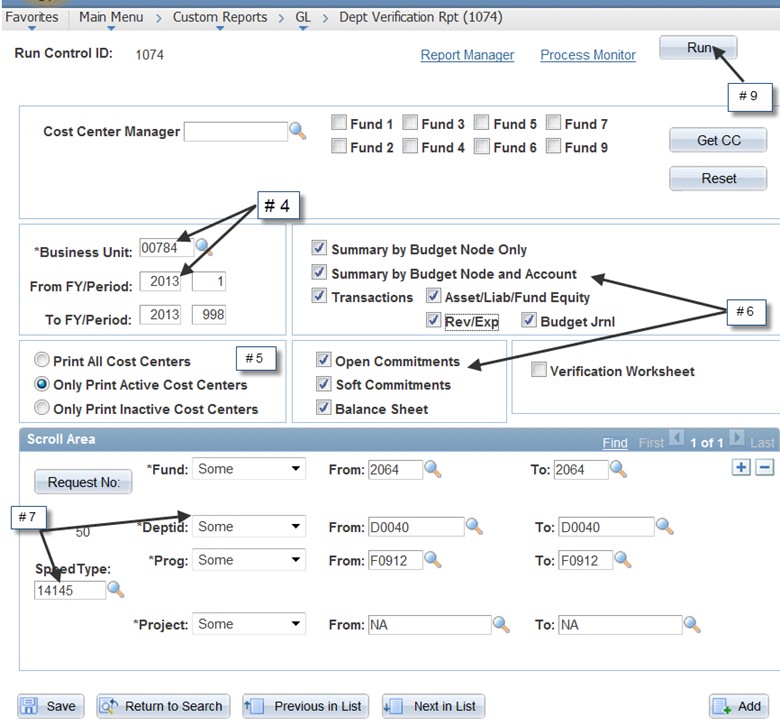
Enter the Fiscal Year and range of periods for which the report is to display data.
To view only cost centers that were active during the To period, check the Only Print Active Cost Centers option. If deselected, all cost centers that match the criteria will print.
Select the section(s) of the report to generate. The default setting includes all sections of the report. Click the corresponding box to deselect a particular section of the report. NOTE: Do not check the Verification Worksheet.
Enter the parameters of the Cost Center(s) or enter the Speed Type for which the report is to retrieve data. For our example, enter “14145” in the Speed Type field.
Data can be selected in a number of ways. Each chartfield has a drop down box listing criteria choices. You can be very specific (ie. one cost center) or you can pull data by a single chartfield such as fund. To extract data by department, choose the “Tree Node” option on the Department chartfield and set the other chartfields to “ALL”.
To insert additional requests, click the plus sign to the right and enter the additional criteria for which data is to be retrieved.
Click Save.
Click Run.
The Process Scheduler Request page is displayed:
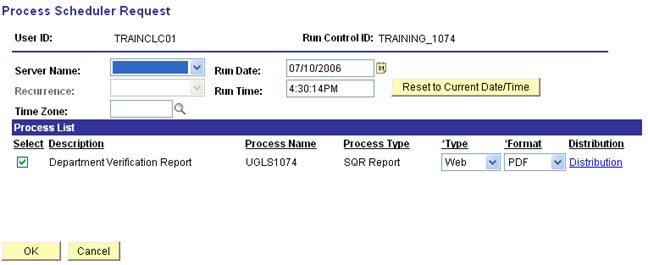
Click OK. Make sure Server Name is blank, the Select box is checked, Web is selected in the Type and PDF for the Format fields.
The Report Parameter page is displayed:

Click the Process Monitor link.
The Process List is displayed:
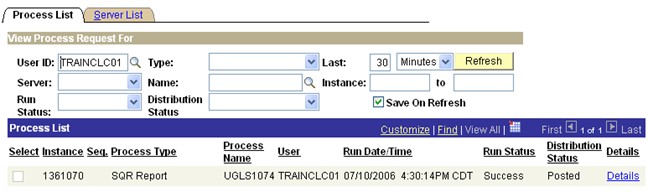
Click Refresh. When the report has finished, the Run Status must display Success and the Distribution Status Posted.
Click Details.
The Process Details page is displayed:
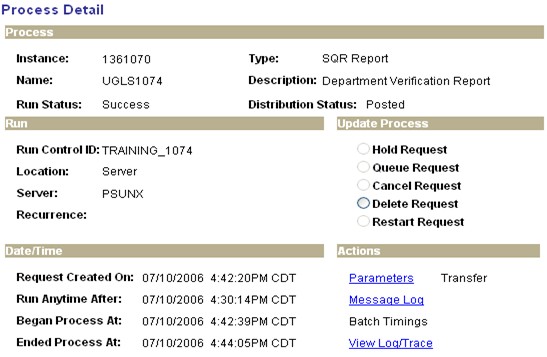
Click View Log/Trace.
The View Log/Trace page is displayed:
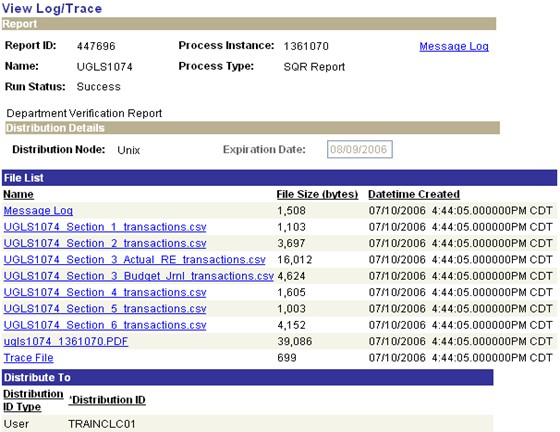
Click the PDF file to view the report in Adobe or CSV to view the report in Excel.