Payroll Reallocations
Overview
- Payroll reallocations allow users to reallocate salary and fringe benefits on paychecks to desired cost centers in PeopleSoft HR.
- The electronic reallocation form (eRAF) allows payroll reallocations to feed directly into PeopleSoft after being fully approved.
- One paycheck is allowed per eRAF. If multiple paychecks must be reallocated, multiple eRAFs must be submitted.
- Once the eRAF is submitted by the user, it is routed to the user’s normal HR approval path, typically at the college and division level, and subsequently to the Budget Office for final approval and execution.
- If the eRAF contains a grant cost center, the Office of Research and Sponsored Programs (ORSP) will be included in the approval path, and to the Budget Office for final approval and execution.
- Note: The eRAF currently does not offer the ability to reallocate payroll from one position number to another position number.
-
- To reallocate payroll from one position number to another position number, and the earnings cost center is changing, an eRAF can be submitted but the department must cite the position number to which the payroll should be moved to in the comments section. The Budget Office will manually enter this reallocation into PeopleSoft.
- To reallocate payroll from one position number to another position number, and the earnings cost center is remaining the same, the department must fill out and submit the old Reallocation Form (RAF).
Step-by-Step-Create a new eRAF
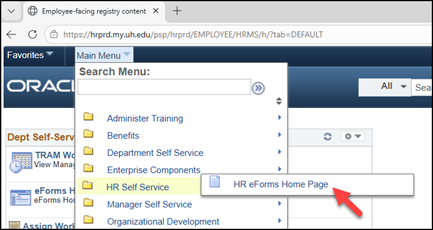
- Navigation Path: Mn Menu > HR Self Service > HR eForms Home Page
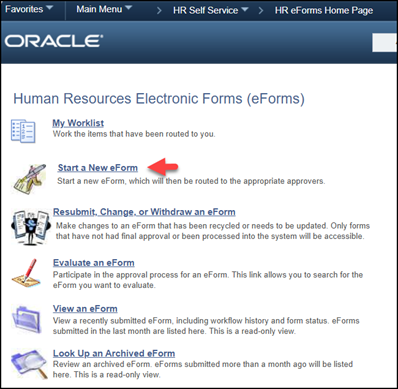
- Click the Start a New eForm link
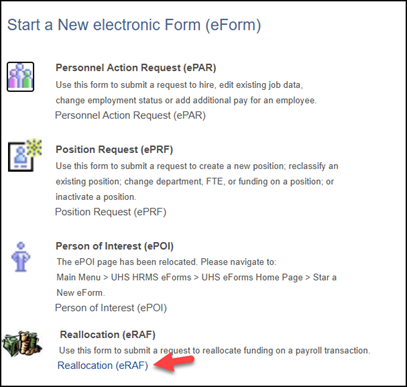
- Select the Reallocation (eRAF) link
- Search for Paycheck
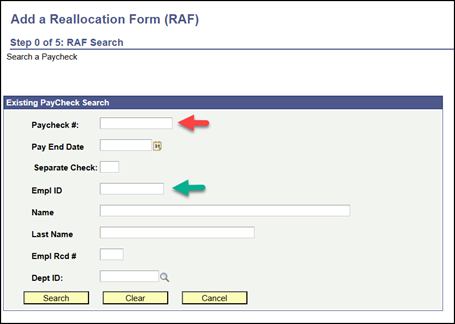
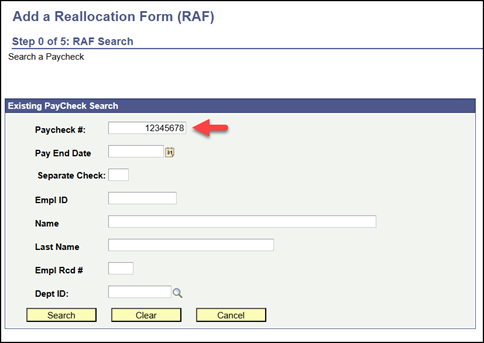
- Enter Paycheck Number
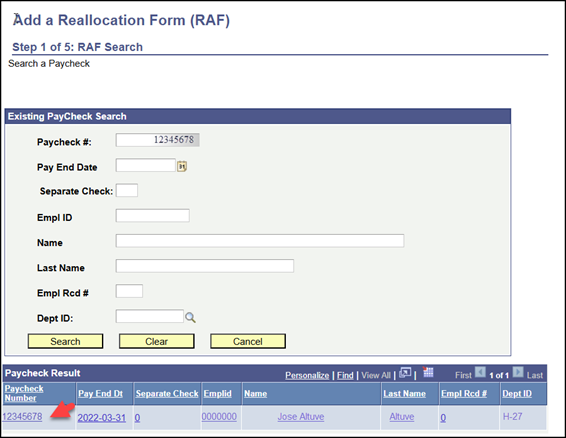
- Click the link
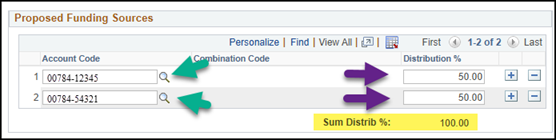
- Enter Proposed Funding Sources
- Enter Account Code(s) and make sure the total distribution equals 100%
- (+) and (-) is to add additional account code(s) and to delete the incorrect one
- Select Reallocation Reason:
- Suspense: This option should be used by the UHD Budget Office only
- Reallocation: Use the Reallocation option to move payroll from the original cost center(s) to a new cost center(s). Earnings, deductions, and taxes tied to the original cost center(s) will transfer automatically
- Override: Use this option to move funds from the original cost center(s) to a new cost center(s).
This option allows you to manually edit amounts and add or remove cost centers as
needed
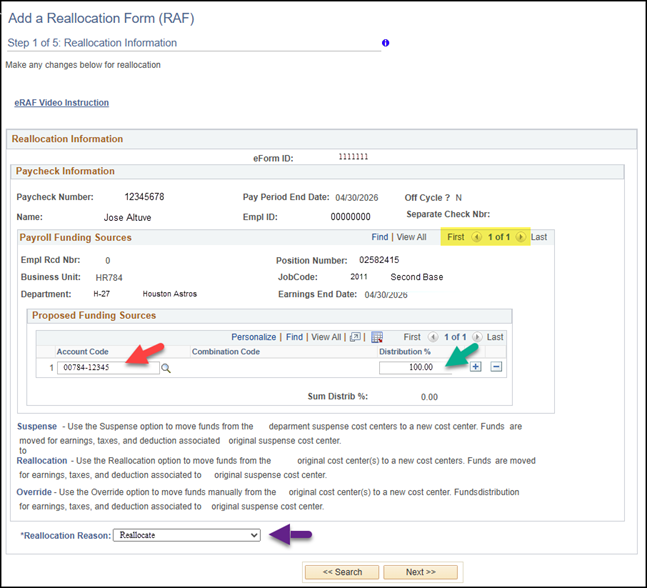
- If payroll needs to be reallocated to more than one cost center, use the “+” button to add the necessary cost center rows
- The total distribution across all rows must always equal 100%
- Review the Earnings distribution under the Current Funding Sources and Proposed Funding Sources sectionsReview the Earnings distribution under the Current Funding Sources and Proposed Funding Sources sections
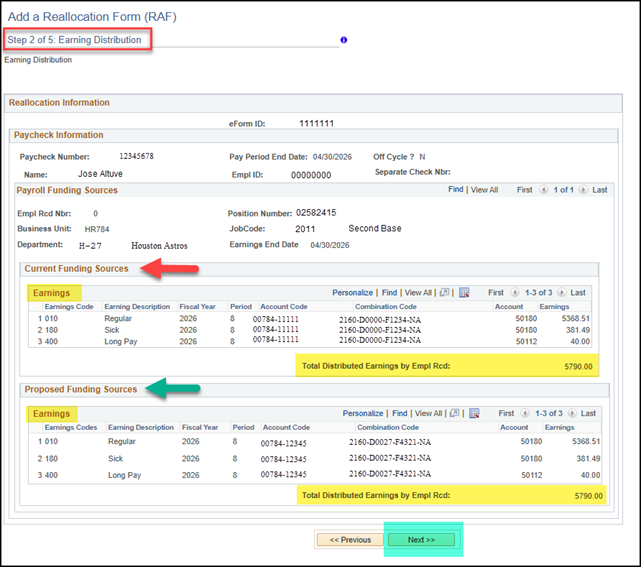
Note: The information on the Step 2 screen is read only. -
- PeopleSoft calculates the new earnings allocation amounts based on the distribution percentage entered on Step 1
- If you need to edit amounts on the system-calculated lines, you must select the Override reallocation reason
- After completing the review, click Next to continue to the next page.
- Review the Deductions distribution in the Current Funding Sources and Proposed Funding Sources sections
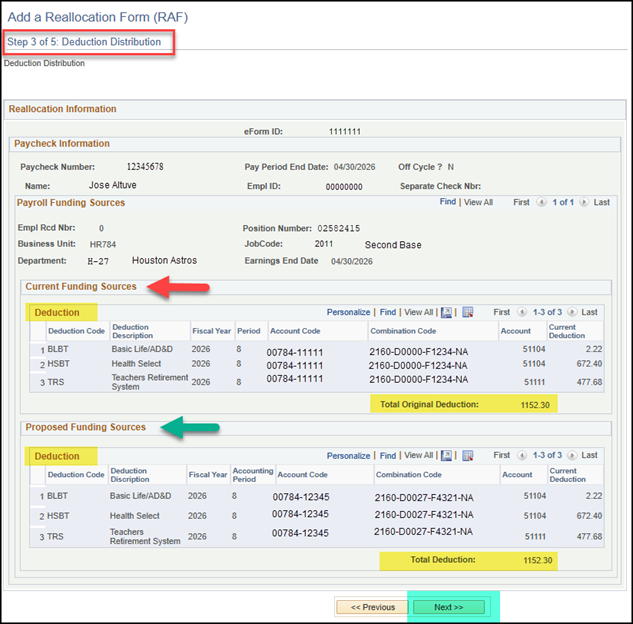
- After completing the review, click Next to continue to the next page
- Review the Taxes distribution in the Current Funding Sources and Proposed Funding Sources sections
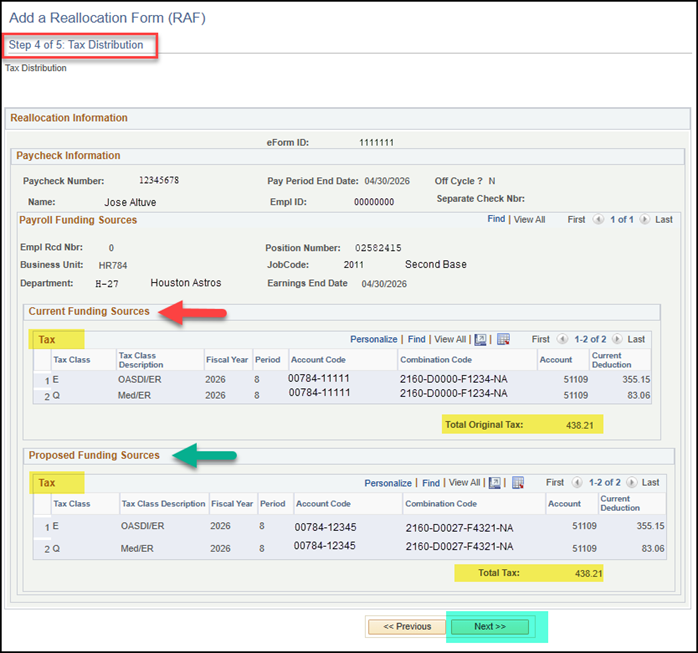
- After completing the review, click Next to continue to the next page
- Finalize the eRAF
- Attach all backup documentation supporting the reallocation. This should include the BOB pages showing the position number(s), the 1074s for all cost centers involved, the applicable ePRF(s), and any additional supporting emails or documentation that should be included.
- Add any comments or special instructions, if needed. This includes position changes, as the option to process them electronically through eRAFs is not yet available and must be entered manually
- Once the review is complete, click Submit. The form will be routed to the next approver. A confirmation screen will display indicating the form has been finalized, along with the form number
Multiple positions - eRAF
- For cases with multiple positions, the user must populate all employee records with the appropriate account codes, and each record must total 100%. The account code(s) must remain within the same Business Unit for each record (e.g., BU: HR784 for both current and proposed funding), and both account codes should begin with 00784
- If no changes are needed for a record, enter the same account code assigned to that
position on the original paycheck and set the distribution to 100%
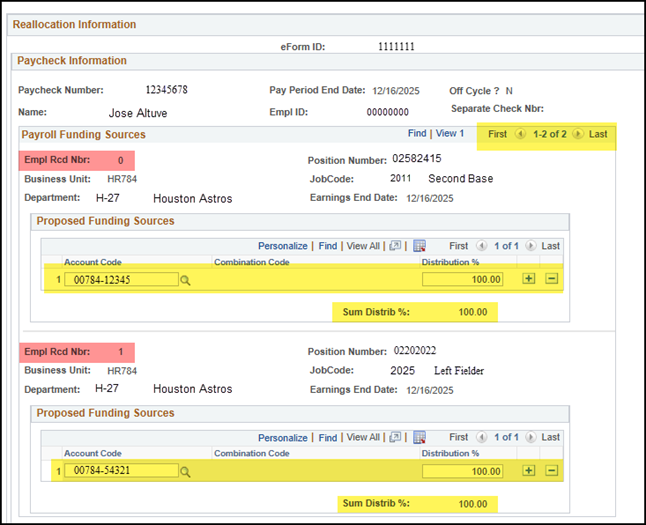
- After completing all required fields, click Next to continue to the next page. Refer to Step 9 above Section “Step-by-Step – Create a new eRAF” to continue the review process for earnings, deductions, taxes, justification, and final submission of the form
View eRAF
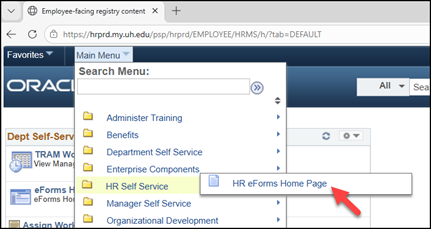
- Navigation Path: Main Menu > HR Self Service > HR eForms Home Page
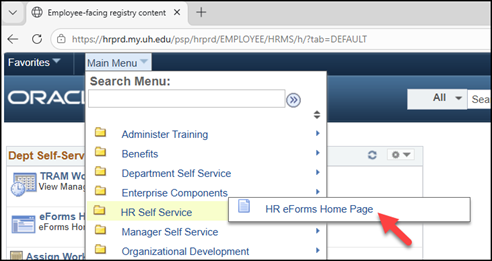
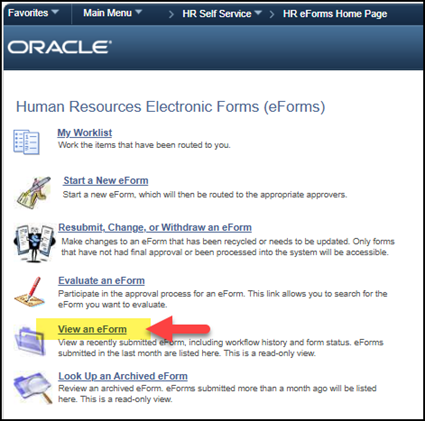
- Click view an eForm
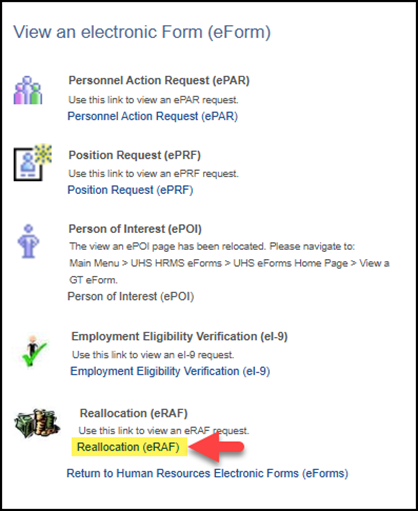
- Select the Reallocation (eRAF) link
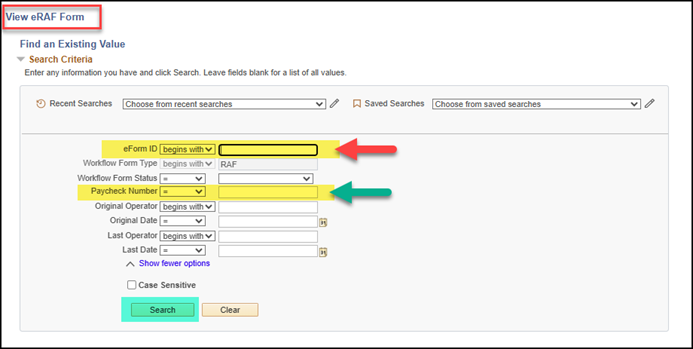
- Search the eRAF by Form ID or Paycheck, click Search, and then select the eRAF link
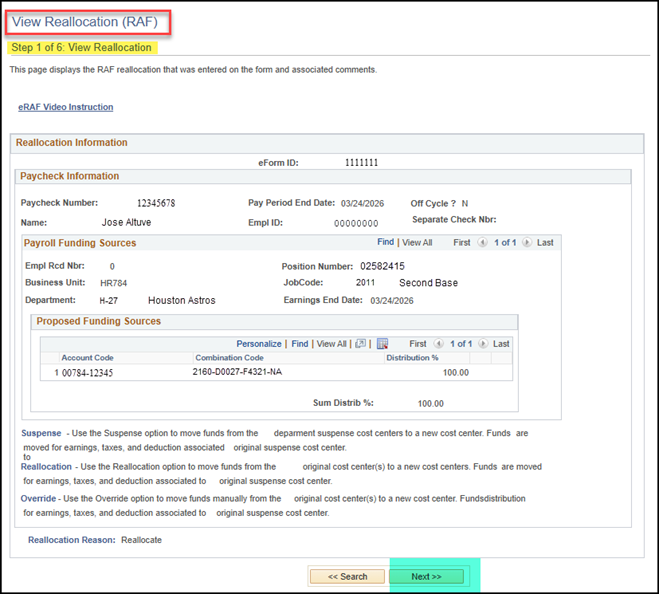
- You will have access to steps 1 through 6. Please proceed by navigating through each
page and clicking Next to move to the next page
Edit eRAF
- Navigation Path: Main Menu > HR Self Service > HR eForms Home Page
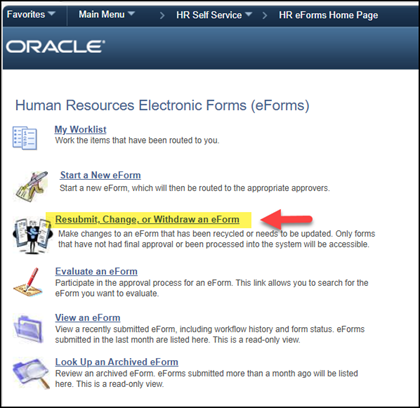
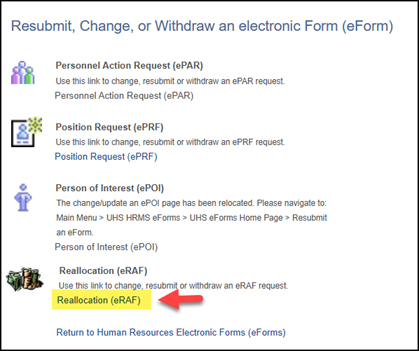
- Select Resubmit, Change, or Withdraw an eForm
- Select Reallocation (eRAF)
- Enter the search criteria – by Form ID or by Paycheck number to pull the eRAF form
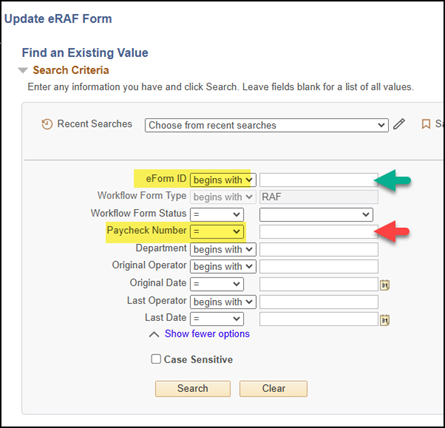
- Click Search to pull the eRAF form and click the eForm link
- You will have access to steps 1 through 6. Please navigate through each page to make
any necessary edits, then click Next to proceed to the following page
- Use (+) and (-) to add additional account code(s) and to delete the incorrect one.
Make sure the total distribution equals 100%
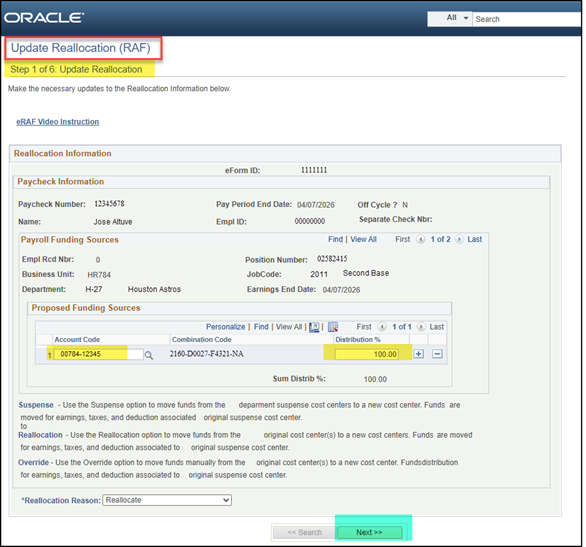
- Use (+) and (-) to add additional account code(s) and to delete the incorrect one.
Make sure the total distribution equals 100%
- Once your edits are complete, click Next to review and edit earnings, deductions, taxes, and supporting documents
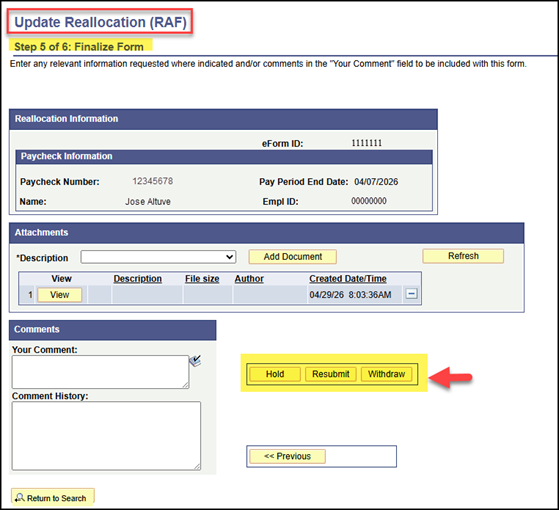
- Finalize the eRAF form
Select:
-
-
- Hold - Put the form on HOLD
- Resubmit - The form will be sent to the next approver with any changes and/or comments you may have made
- Withdraw – End the form process
-
Approve eRAF
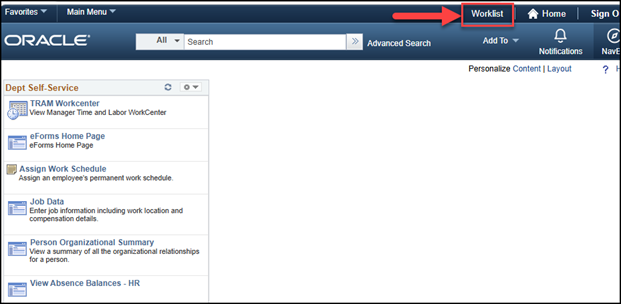
- PeopleSoft Home Page – Click on the worklist
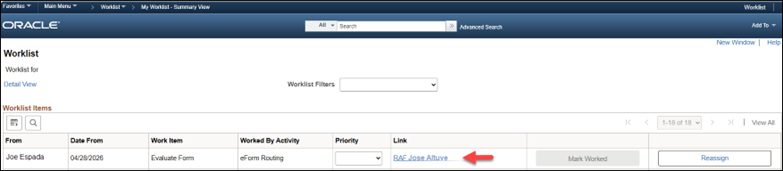
- Select Reallocation: RAF: Employee Name
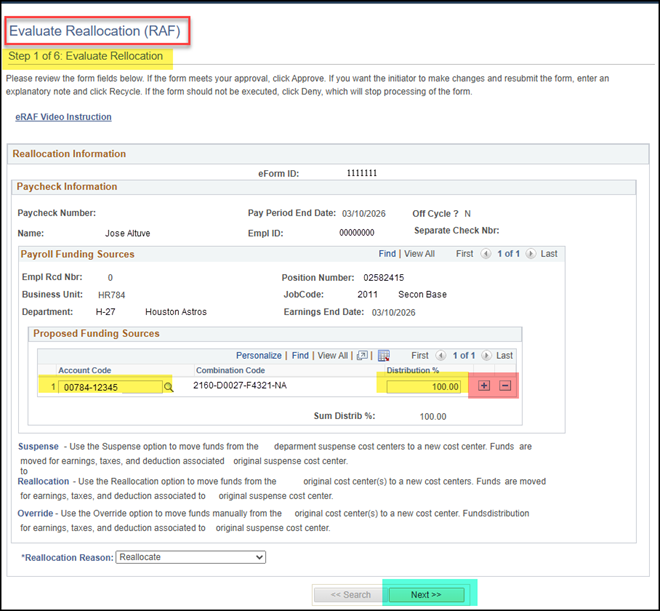
- Review Proposed Funding Sources and making necessary changes. See below:
- Enter Account Code(s) and make sure the total distribution equals 100%.
- (+) and (-) is to add additional account code(s) and to delete the incorrect one
- Select Reallocation Reason: Reallocation, Suspense or Override
- If No Changes click Next to Continue
- Evaluate Earnings, Deductions and Taxes Distribution
- Review and click Next
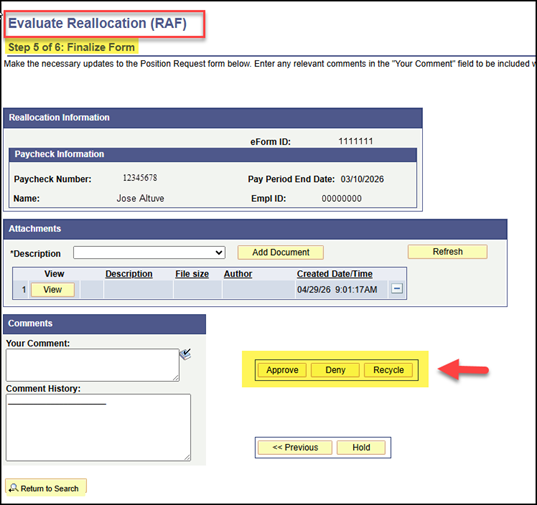
- Finalize Form - Select the following option:
- Approve - The form will be sent on to the next approver for evaluation, or, if you are the final approver, the form will be loaded into the system. If you change anything on the form, please make note in the comments box
- Deny – Denying an action permanently ends form processing
- Recycle - Recycling a form sends it back to its originator for changes. When recycling, you
should give directions in the Comments section that will help the originator make
acceptable changes
Errors
Multiple Positions
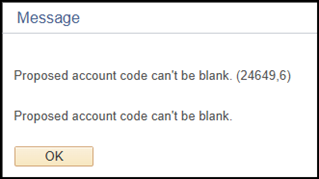
If you receive this error message, it means the account field has been left blank. When a paycheck includes multiple positions, you must open all records and complete the account fields for each position.
Please refer to the “Multiple Positions” section for additional guidance.