
1063 Budget Summary Report
How to Run the Budget Summary Report (UGLS1063)
The Budget Summary Report displays a cumulative high-level summary of revenue and expense budget, actuals, open commitments, and budget balances available (BBA) by cost center.
PEOPLESOFT FINANCE NAVIGATION:
Custom Reports > GL > Budget Summary (1063)
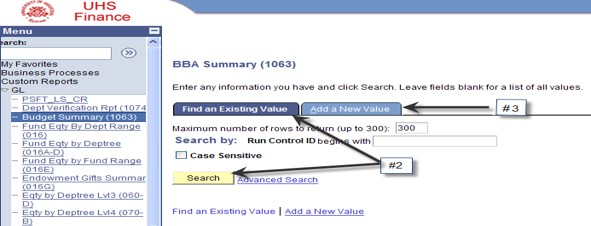
Click Search on the Find an Existing Value tab to select a Run Control ID to open the report parameters page.
To add a new run control: Select the Add a New Value tab. Enter a name for the run control, and then click the Add button.
The 1063 Report Parameter page is displayed:
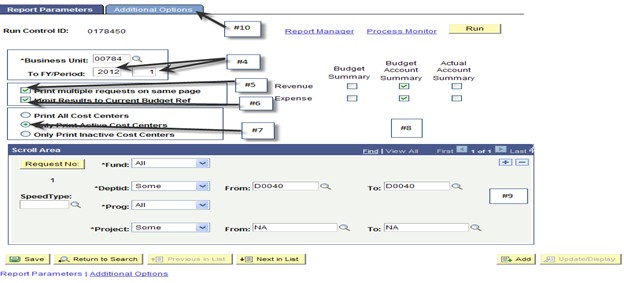
Enter the Fiscal Year and Period through which the report is to display data.
Check the Print multiple requests on same page to print multiple cost centers on the same page instead of one cost center per page.
Check the Limit Results to Current Budget Ref to view only transactions with a current budget reference in order to view a current year BBA.
Check the Only Print Active Cost Centers box to view only the cost centers that were active during the To period. If deselected, all cost centers in the parameters will print.
Select the section(s) of the report to generate. The sections are:
Budget Summary – this section provides summary revenue and expense base and current budget, current revenue/expense, YTD revenue/expense, Open Commitments, Soft Commitments and BBA for each cost center.
Budget Account Summary - this section provides revenue and expense base and current budget, current revenue/expense, YTD revenue/expense, Open Commitments, Soft Commitments and BBA for each cost center by budget node.
Actual Account Summary - this section provides revenue and expense base and current budget, current revenue/expense, YTD revenue/expense, Open Commitments, Soft Commitments and BBA for each cost center listing detail by account number.
Enter the Cost Center(s) to be reported on. To retrieve a single Cost Center, the Speed Type, Program, or Project may be used. Data may also be retrieved for all Cost Centers within a Department or Fund.
Click the Additional Options tab.
The Additional Options tab is displayed:
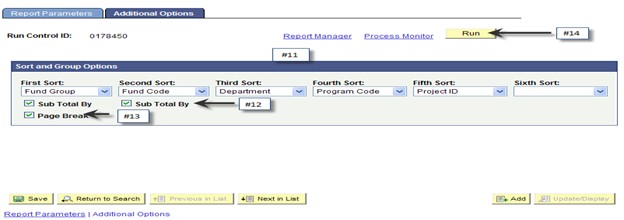
Choose the sort order of the report. The choices for each sort are: Department, Fund Code, Fund Group, Program Code, Program Group, Project Group, and Project ID.
Check the “Sub Total By” box if the report is to be subtotaled by the First Sort and/or the Second Sort choice.
Check the “Page Break” box if the report is to have a page break at each change in the First Sort choice.
Click the Run button to submit the report request.
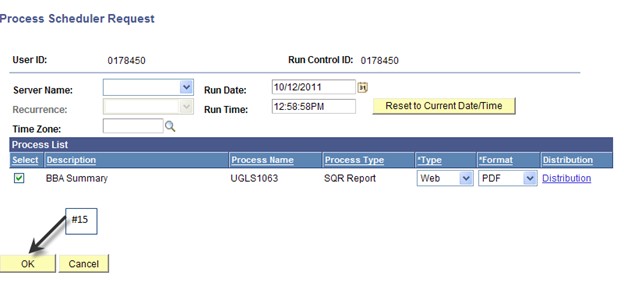
The Process Scheduler Request page is displayed.
Click OK.
The report Parameter page is displayed.
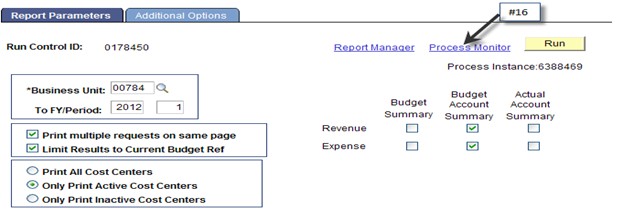
Click Process Monitor.
The Process List page is displayed:
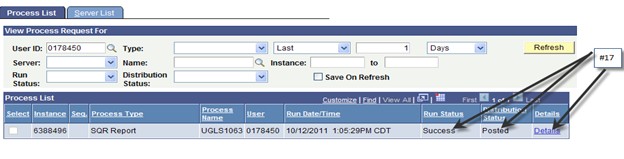
Look for a Run Status of “Success” and a Distribution Status of “Posted”. Click Details.
The Process Details page is displayed:
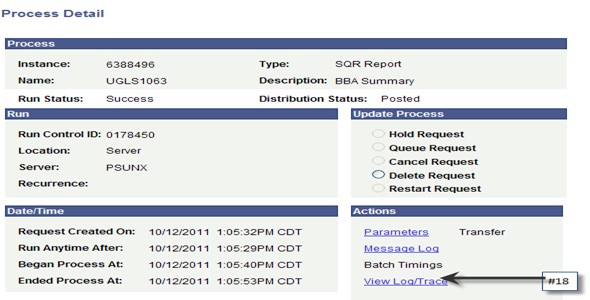
Click View Log/Trace.
The View Log/Trace page is displayed:
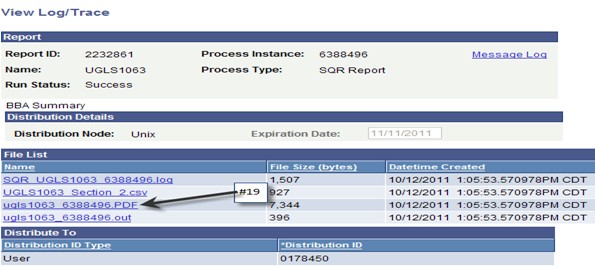
Click PDF file link to view the report in Adobe or click CSV to view the report in Excel.