
How to Add an Authorized User
This page provides detailed instructions for adding an authorized user to your PayMyTuition (PMT) account.
STEP 1: Access the PayMyTuition Portal
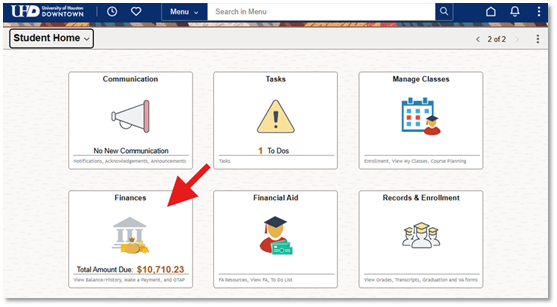
- Log into the myUHD Student Login portal. Upon signing in, select the Finances tile.
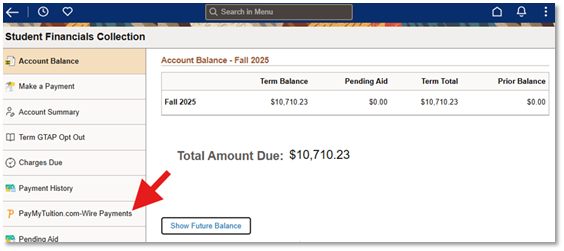
- From the navigation panel, select PayMyTuition.com-Wire Payments.
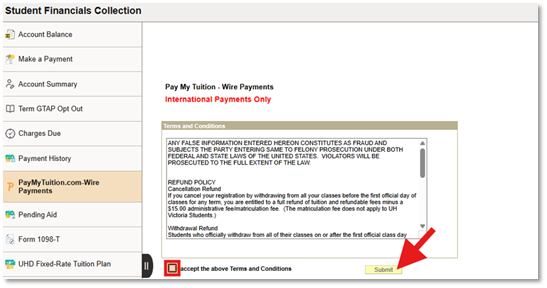
- Next, accept the Terms and Conditions and click Submit to be redirected to the PayMyTuition portal.
STEP 2: Register for an Account with PayMyTuition
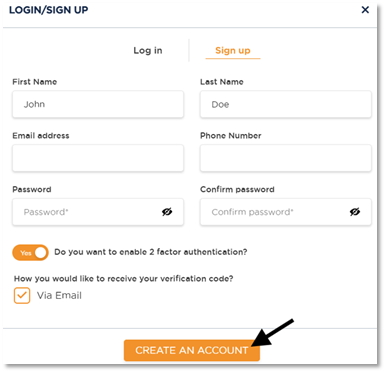
- Upon redirecting into the PayMyTuition portal, select CREATE PROFILE and click the REGISTER button.
- Complete your profile information and click CREATE AN ACCOUNT.
- Watch for an email from PayMyTuition confirming your profile has been created.
STEP 3: Add Your Authorized User
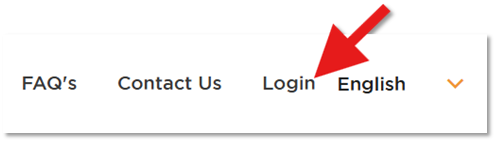
- Within the PayMyTuition portal, log in to your PayMyTuition account.
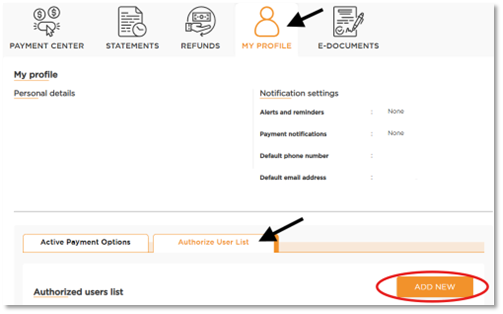
- Select the MY PROFILE section and click Authorize User List at the bottom of the page. Then click ADD NEW.
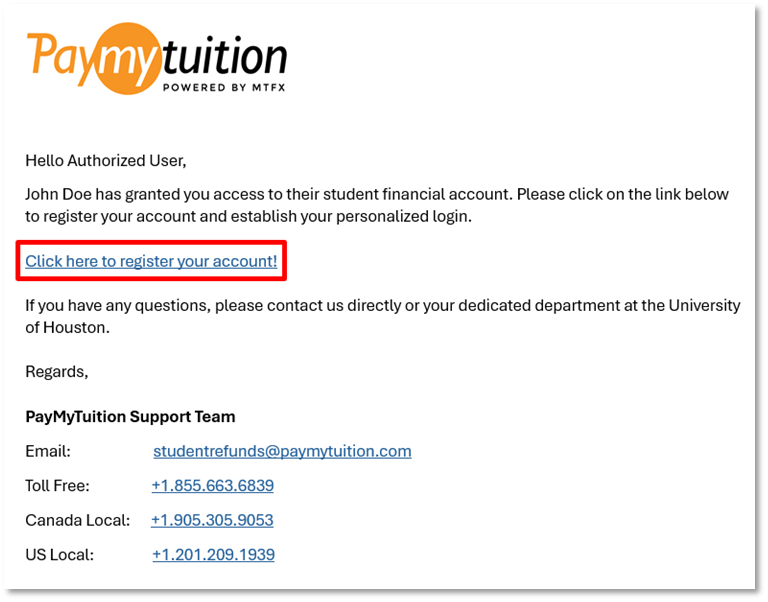
- Your authorized user will receive an email from PayMyTuition requesting they register as a user.
- Students can track the status of their authorized user request, edit details, delete
the user, or resend the email link from the Authorized Users list dashboard.

Authorized User Instructions
STEP 1: Complete Your Profile Registration
The authorized user will receive an email from PayMyTuition with a request to register for an account. Click the link in the email to complete your account setup.
STEP 2: Access Your PayMyTuition Account as an Authorized User
To access your student’s PayMyTuition account as an Authorized User, log in at the PayMyTuition portal.
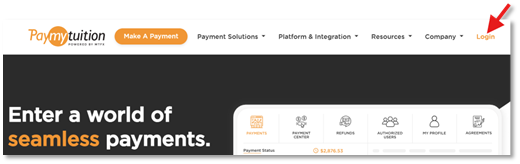
Input your email address and password and click Login to access the student’s Payment Center.